
Running SQL Server natively on macOS using SQLCMD CLI
Table of Contents
A long time ago in a galaxy far, far away…
This post is over 24 months old, that is an lifetime in tech! Please be mindful of that when reading this post, young Padawan, as it could be outdated. I try to keep things up to date as much as possible. If you think something needs updating, please let me know in the comments.
Introduction
I wrote recently about how to run SQL Server on macOS using Docker. I have only just discovered that there is an even easier way to do this using the new SQLCMD CLI tool. This is a new version of the SQLCMD utility that was released back in 2023. I have always used a Mac and my life struggle is to not have to use a Windows machine / VM, this definitely gets me closer to that goal (looking at you SSMS [1], Power BI [2], and Visio [3]).
Pre-requisites
Before you can complete the steps below, you need to install and configure Docker and Rosetta 2…
Install Docker and Rosetta 2
- Install Docker from Docker docs .
- Install Rosetta 2 by running
softwareupdate --install-rosettafrom the command line.
Configure Docker
You need to set two settings in Docker, check the following options in Settings > General:
- Use Virtualization Framework.
- Use Rosetta for x86_64/amd64 emulation on Apple Silicon.
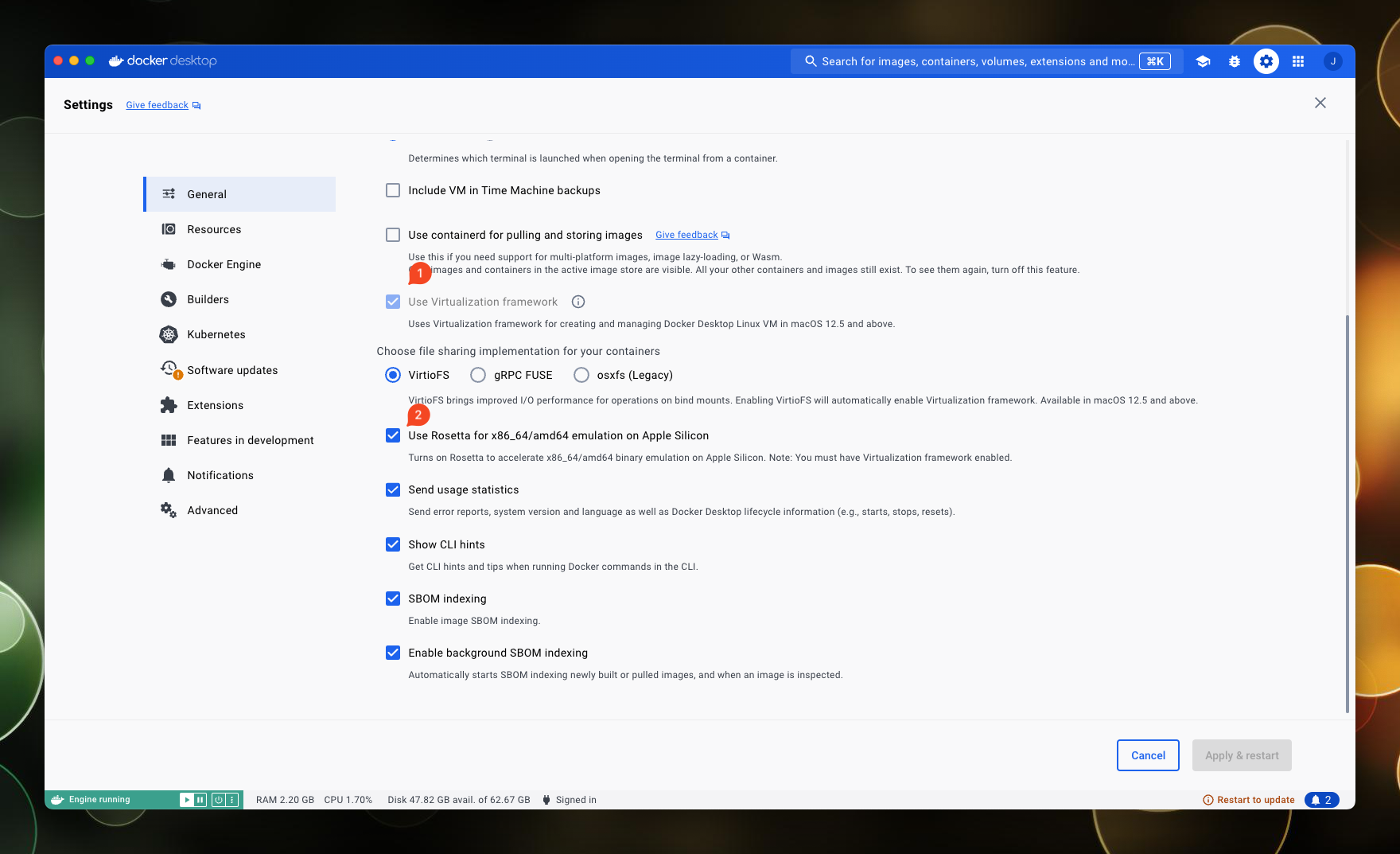
Note that the Use Rosetta for x86_64/amd64 emulation on Apple Silicon setting is now a general setting since version 4.29.0. If you are using a previous version, you will find it in Settings > Features in development if it’s not in there either, it’s time to update!
Install Sqlcmd
You also need to install sqlcmd, which you can do using Homebrew:
brew install sqlcmd
Checking the Help
The help is really useful, it returns a list of the flags that you can use with the create command:
sqlcmd create mssql --help
Here is the output:
Install/Create SQL Server in a container

Usage:
  sqlcmd create mssql [flags]
  sqlcmd create mssql [command]

Examples:
# Install/Create SQL Server in a container
  sqlcmd create mssql
# See all release tags for SQL Server, install previous version
  sqlcmd create mssql get-tags
  sqlcmd create mssql --tag 2019-latest
# Create SQL Server, download and attach AdventureWorks sample database
  sqlcmd create mssql --using https://aka.ms/AdventureWorksLT.bak
# Create SQL Server, download and attach AdventureWorks sample database with different database name
  sqlcmd create mssql --using https://aka.ms/AdventureWorksLT.bak,adventureworks
# Create SQL Server with an empty user database
  sqlcmd create mssql --user-database db1
# Install/Create SQL Server with full logging
  sqlcmd create mssql --verbosity 4

Available Commands:
  get-tags    Get tags available for mssql install

Flags:
      --accept-eula                     Accept the SQL Server EULA
      --architecture string             Specifies the image CPU architecture (default "amd64")
      --cached                          Don't download image.  Use already downloaded image
      --collation string                The SQL Server collation (default "SQL_Latin1_General_CP1_CI_AS")
  -c, --context-name string             Context name (a default context name will be created if not provided)
      --errorlog-wait-line string       Line in errorlog to wait for before connecting (default "The default language")
  -h, --help                            help for mssql
      --hostname string                 Explicitly set the container hostname, it defaults to the container ID
      --name string                     Specify a custom name for the container rather than a randomly generated one
      --os string                       Specifies the image operating system (default "linux")
      --password-encryption string      Password encryption method (none) in sqlconfig file (default "none")
      --password-length int             Generated password length (default 50)
      --password-min-number int         Minimum number of numeric characters (default 10)
      --password-min-special int        Minimum number of special characters (default 10)
      --password-min-upper int          Minimum number of upper characters (default 10)
      --password-special-chars string   Special character set to include in password (default "!@#$%&*")
      --port int                        Port (next available port from 1433 upwards used by default)
      --registry string                 Container registry (default "mcr.microsoft.com")
      --repo string                     Container repository (default "mssql/server")
      --tag string                      Tag to use, use get-tags to see list of tags (default "latest")
  -u, --user-database string            Create a user database and set it as the default for login
      --using string                    Download (into container) and attach database (.bak) from URL

Global Flags:
  -?, --?                  help for backwards compatibility flags (-S, -U, -E etc.)
      --sqlconfig string   configuration file (default "/Users/justin/.sqlcmd/sqlconfig")
      --verbosity int      log level, error=0, warn=1, info=2, debug=3, trace=4 (default 2)
      --version            print version of sqlcmd

Use "sqlcmd create mssql [command] --help" for more information about a command.
Get Tags
The get-tags command will return a list of available versions you can install (there are lots so I won’t paste the output):
sqlcmd create mssql get-tags
Here is the output:
## condensed output, there are lots of versions but the "latest" tags are probably the simplest to use
- 2017-latest
- 2019-latest
- 2022-latest
- latest
Create a SQL Server Instance
Based on the help and the get-tags, I am going to create a container with the following options:
- A 2022 instance of SQL Server.
- Call the host and container sql2022.
- Set the port to 2022.
- Restore the AdventureWorksLT database.
- Create a second database for my use called.
The command will look like this:
# make sure docker is running when you run the command!
sqlcmd create mssql --using https://aka.ms/AdventureWorksLT.bak --accept-eula --user-database AdventureWorksLT --hostname sql2022 --name sql2022 --port 2022 --tag 2022-latest
Here is the output:
Downloading mcr.microsoft.com/mssql/server:2022-latest
Starting mcr.microsoft.com/mssql/server:2022-latest
Created context "mssql" in "/Users/justin/.sqlcmd/sqlconfig", configuring user account...
Disabled "sa" account (and rotated "sa" password). Creating user "justin"
Creating default database [db1]
Downloading AdventureWorksLT.bak
Restoring database AdventureWorksLT
Processed 888 pages for database 'AdventureWorksLT', file 'AdventureWorksLT2022_Data' on file 1.
Processed 2 pages for database 'AdventureWorksLT', file 'AdventureWorksLT2022_Log' on file 1.
RESTORE DATABASE successfully processed 890 pages in 0.021 seconds (330.915 MB/sec).
Now ready for client connections on port 2022
All done! Once complete you will be presented with a list of commands:
HINT:
  1. Open in Azure Data Studio: sqlcmd open ads
  2. Run a query:               sqlcmd query "SELECT @@version"
  3. Start interactive session: sqlcmd query
  4. View sqlcmd configuration: sqlcmd config view
  5. See connection strings:    sqlcmd config connection-strings
  6. Remove:                    sqlcmd delete
Running a query I can see that I have a SQL Server 2022 instance running:
sqlcmd query "SELECT @@version"
Here is the output:
------------------------------------------------------------------------------------------------------------------------------------------------------------------------------------------------------------------------------------------------------------------------------------------------------------
Microsoft SQL Server 2022 (RTM-CU12-GDR) (KB5036343) - 16.0.4120.1 (X64)
        Mar 18 2024 12:02:14
        Copyright (C) 2022 Microsoft Corporation
        Developer Edition (64-bit) on Linux (Ubuntu 22.04.4 LTS) <X64>

(1 row affected)
Open in Azure Data Studio
I should be able to open the instance in Azure Data Studio by running the command sqlcmd open ads, but at time of writing there is a bug with how this works for macOS which you can read about on the issues page
and so in the meantime, you need to run the command sqlcmd config connection-strings which will return the connection strings you need to connect to the instance:
sqlcmd config connection-strings
Here is the output:
ADO.NET: Server=tcp:127.0.0.1,2022;Initial Catalog=AdventureWorksLT;Persist Security Info=False;User ID=justin;Password=ADB@5XRB7k$$N#!9EUDQ!o808*OPQ6AO*deQ0!P$17U2Lw%iEQ;MultipleActiveResultSets=False;Encrypt=True;TrustServerCertificate=True;Connection Timeout=30;
JDBC:    jdbc:sqlserver://127.0.0.1:2022;database=AdventureWorksLT;user=justin;password=ADB@5XRB7k$$N#!9EUDQ!o808*OPQ6AO*deQ0!P$17U2Lw%iEQ;encrypt=true;trustServerCertificate=true;loginTimeout=30;
ODBC:    Driver={ODBC Driver 18 for SQL Server};Server=tcp:127.0.0.1,2022;Database=AdventureWorksLT;Uid=justin;Pwd=ADB@5XRB7k$$N#!9EUDQ!o808*OPQ6AO*deQ0!P$17U2Lw%iEQ;Encrypt=yes;TrustServerCertificate=yes;Connection Timeout=30;
GO:      sqlserver://justin:ADB@5XRB7k$$N#!9EUDQ!o808*OPQ6AO*deQ0!P$17U2Lw%iEQ@127.0.0.1,2022?database=AdventureWorksLT;encrypt=true;trustServerCertificate=true;dial+timeout=30
SQLCMD:  export 'SQLCMDPASSWORD=ADB@5XRB7k$$N#!9EUDQ!o808*OPQ6AO*deQ0!P$17U2Lw%iEQ'; sqlcmd -S 127.0.0.1,2022 -U justin -d AdventureWorksLT
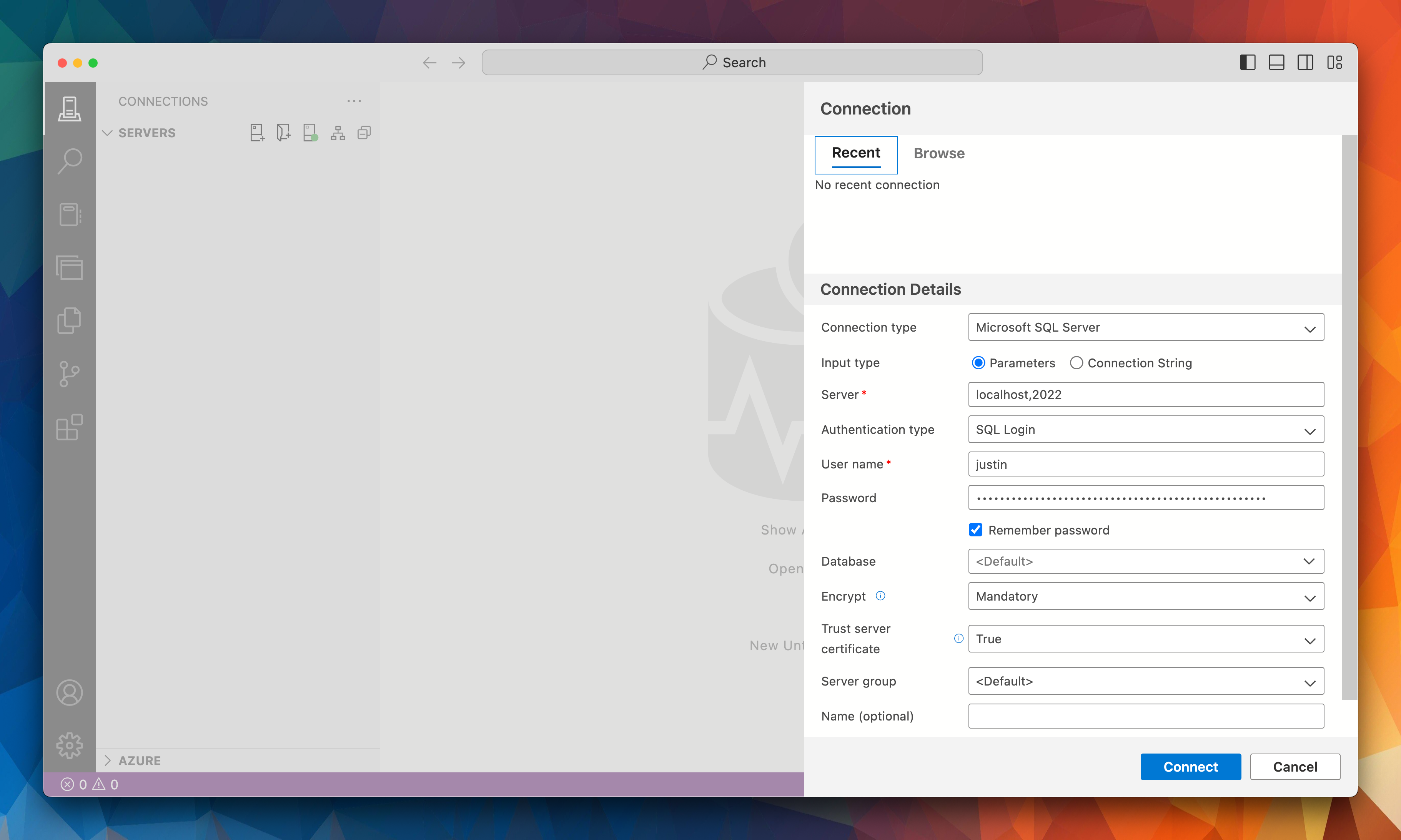
Observe that the username and password will be present in the connection strings so for me it is (which I have now cycled!):
- justin
- ADB@5XRB7k$$N#!9EUDQ!o808*OPQ6AO*deQ0!P$17U2Lw%iEQ
Connect in Azure Data Studio
So I can now connect to the instance in Azure Data Studio by using the login info from the connection strings above:
More Databases
Now that I have a sql instance running, what about a new database, that’s pretty straight forward:
sqlcmd query "Create database db2"
Or I can create it directly from Azure Data Studio.
Creating New Containers from Image
Now that I have downloaded the image, I can spin up additional instances using the --cache switch:
sqlcmd create mssql --accept-eula --user-database db1 --hostname sql2022_test --name sql2022_test --port 3022 --tag 2022-latest --cached
Note that I have had to give the host a distinct name and assign a different port.
Stopping and Starting Container
Whilst docker is running, the container will be running. I can stop the container by running the following command:
docker stop sql2022
To start the container again, I can run the following command:
docker start sql2022
Wrapping Up
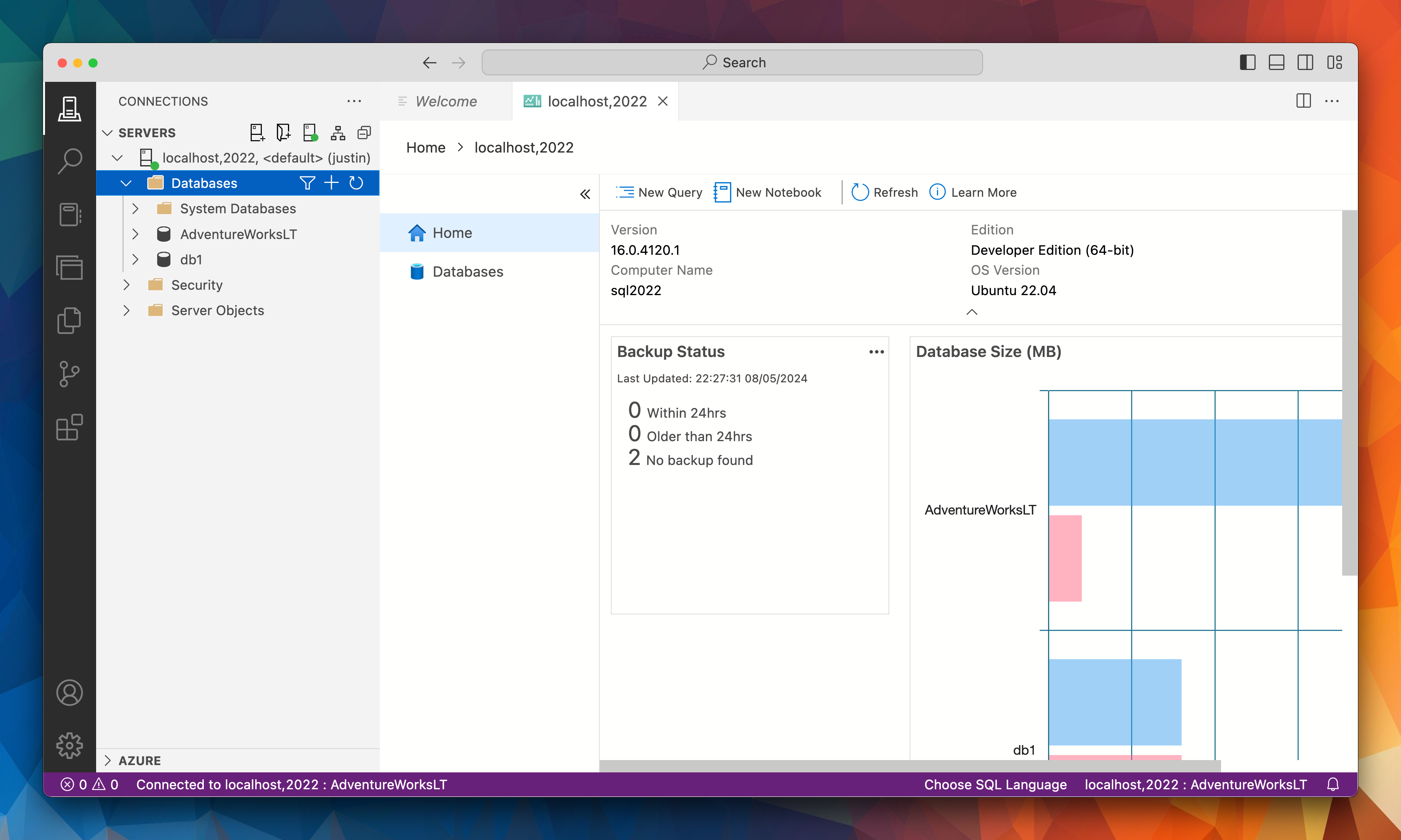
And that’s it! Very simple to set up. I have a running instance of SQL Server 2022 with the AdventureWorksLT database attached and a second database called db1 that I can use for my own purposes.
References
Appendix


#mtfbwy
Comments