
Learning to Hugo Part 4: Shortcodes and Archetypes
Table of Contents
A long time ago in a galaxy far, far away…
This post is over 12 months old and Hugo is evolving. Please be mindful of that when reading this post, young Padawan, as it could be outdated. I try to keep things up to date as much as possible. If you think something needs updating, please let me know in the comments.
Intro
This is the fourth part of the learning to Hugo series detailing my journey to getting this site up and running! I am also using Hugo to configure my business website . In typical dev style, I just installed Hugo and got going. I have learnt a few things along the way that have improved my development time and hopefully these things will help you.
In this section I am going to explain how to use shortcodes and archetypes to create repeatable content.
Health & safety warning
I am no web dev! My world is data and so this stuff is outside my area of expertise. I am learning as I go and so the info I am sharing is my interpretation of that in a way that makes sense for me as a data-person-doing-web-dev. Some of the technical aspects might be a little misunderstood and I would love to hear from you in the comments if you think there’s a better way or if I have misunderstood a concept. Hopefully outlining my understanding of it might make it easier for someone wanting to give it a go. If you want advanced CSS understanding or web development skills though these are not the posts you’re looking for!

Shortcodes
A shortcode is a snippet that can be added to your markdown file to call a built in or custom template. It’s a great way of reducing complexity in post creation. There are a number of built in shortcodes and you can also roll your own. That’s great for me - it’s a handy way of not having to fumble through HTML all the time. I can engage my brain for a few hours to get a snippet to work and then I will never have to remember it again!
Tweet
Hugo has a number of built in shortcodes. For example, there used to be a Twitter shortcode which took the tweet ID and created an embedded tweet (read about the workaround in this blog post). The shortcode would take a numeric ID and construct the embed code automatically.
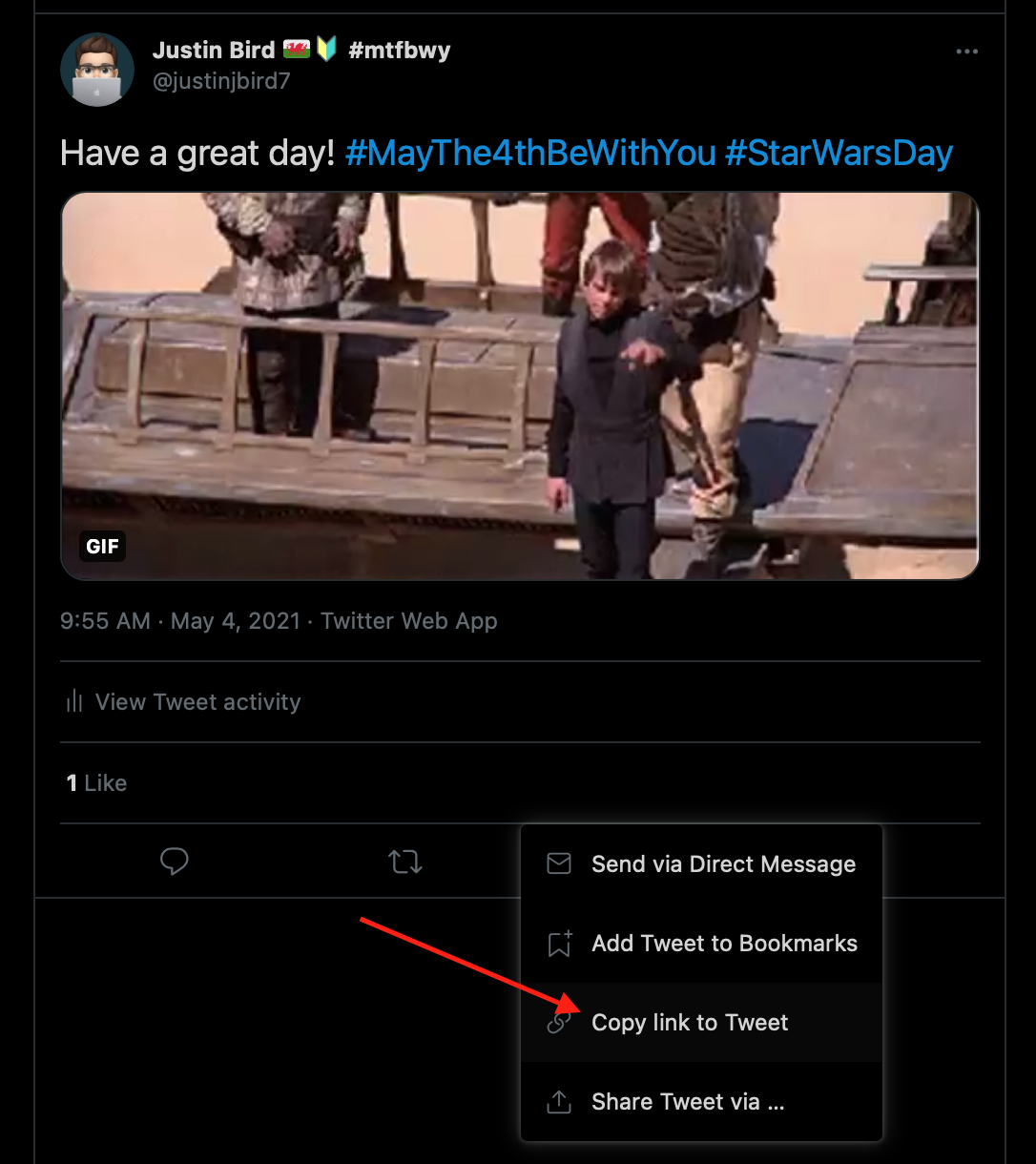
The URL for this tweet is https://twitter.com/justinjbird7/status/1389503945291309056 . If I just take the numeric ID and place it in the tweet shortcode;
{{< tweet 1389503945291309056 >}}
It will embed my tweet like this;

It’s a fully embedded tweet!
Behind the scenes, the tweet shortcode has constructed the embed tweet coding and simply grabs the number you have passed in and applies the code to your built page. Pretty neat!
Gist
Another useful shortcode for coders is the gist shortcode. This shortcode requires the last two sections of the gist URL. Take this URL for example;
https://gist.github.com/justinjbird/65e6f915b37189ac520047cb40ed8c4d
Turn it into the following shortcode;
{{< gist justinjbird 65e6f915b37189ac520047cb40ed8c4d >}}
And it will be embedded like this;
The main purpose for these is to reduce clutter and perhaps to reduce your need to know more complex HTML but it can also be quite a time saver. There is a host of built in shortcodes listed on the Hugo page (see more reading section below).
Page Params
You can also reference front matter using the param shortcode. Here is a few examples for this page;
{{< param categories >}}
[hugo]
{{< param date >}}
2021-05-05 11:04:00 +0100 +0100
So I could build up these params to create sentences;
This post is about {{< param categories >}} on {{< param date >}}
This post is about [hugo] on 2021-05-05 11:04:00 +0100 +0100
Custom Shortcodes
On top of these built in shortcodes, it’s possible to create your own. I have been using this as a way to conform sections of posts, it also makes updating sections really easy too. All of my posts end with a thanks shortcode;
<h2>Thanks</h2>
If you made it all the way down here, thanks for reading my post and enjoy your
day.
<br />
<br />
<figure>
  <picture>
    <source srcset="/images/stuff-jb/jedi.webp" />
    <img
      src="/images/stuff-jb/jedi.webp"
      alt="#mtfbwy"
      defer
      class="lazyautosizes lazyloaded"
      data-sizes="auto"
      data-src="/images/stuff-jb/jedi.webp"
    />
  </picture>
  <figcaption>
    <b><p class="caption">#mtfbwy</p></b>
  </figcaption>
</figure>
There are two advantages to this. Firstly, this makes all my summaries consistent. Secondly, if I ever wanted to change this section, I only have to edit the content of my shortcode and rebuild my site!
How to Create a Shortcode
Create a folder in your layouts folder called shortcodes, any html file created in this folder becomes a shortcode. I will create a new file called “example-shortcode.html” which you can see here;
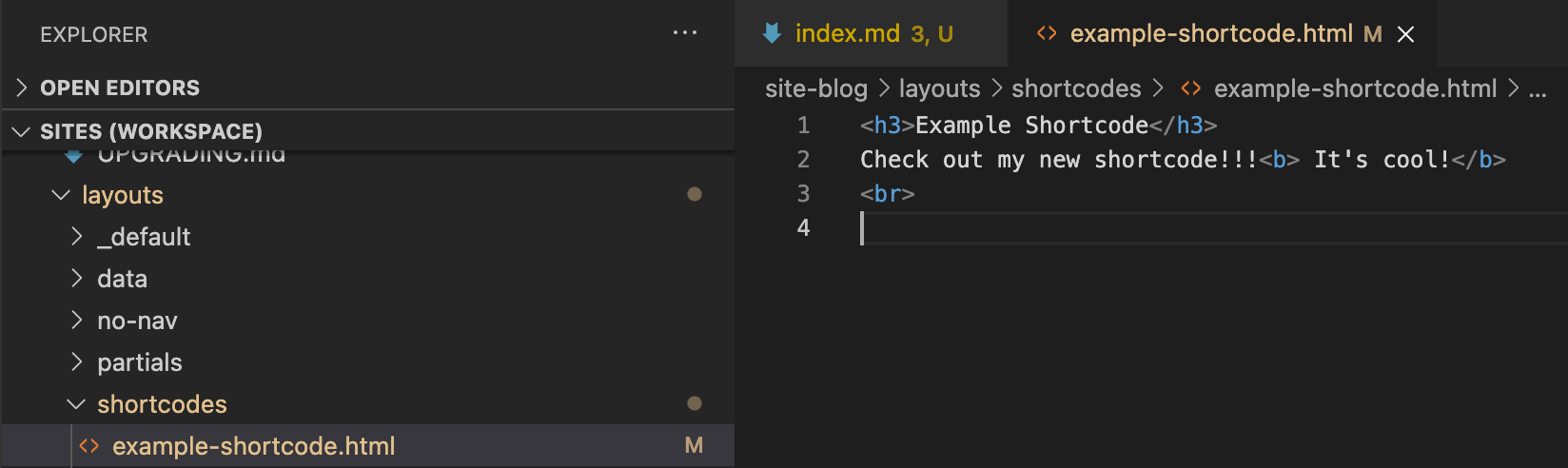
And that is it! Once the file is saved it’s immediately available. So then I can reference the new shortcode like this;
{{< example-shortcode >}}
It will create that block of code on the page like this;
Example Shortcode
Check out my new shortcode!!! It's cool!
Archetypes
Archetypes are content templates. It is a way of constructing preconfigured front matter and content for your new posts. This can be a useful way to reduce the amount of time to create new posts. You can prepare a template with a number of preconfigured settings and once you create a new post, Hugo will apply that template to it.
Default Archetype
When you create a new site, a default archetype will exist which looks like this;


#mtfbwy
Comments